;stroke-width:0px;}%3c/style%3e%3clinearGradient%20id='Degradado_sin_nombre_3'%20x1='993.28627'%20y1='-179.86134'%20x2='-9.62936'%20y2='400.65514'%20gradientUnits='userSpaceOnUse'%3e%3cstop%20offset='0'%20stop-color='%23011781'/%3e%3cstop%20offset='.59897'%20stop-color='%23002fdd'/%3e%3cstop%20offset='1'%20stop-color='%230082e6'/%3e%3c/linearGradient%3e%3c/defs%3e%3cg%3e%3cpath%20class='cls-1'%20d='M896.07535,270.53973l-.00006.00004c-35.81778,20.67941-81.61781,8.40733-102.29721-27.41046L659.20706,10.04547l.00007-.00004c35.81778-20.67941,81.61781-8.40733,102.29721,27.41046l134.57102,233.08384ZM826.65058,130.29272l69.4248-120.24725v-.00006c-35.81787-20.67938-81.61792-8.40729-102.29736,27.41046l-10.36328,17.94995,43.23584,74.8869ZM728.63178,150.29248l-69.42456,120.24725v.00006c35.81763,20.67938,81.61768,8.40729,102.29712-27.41046l10.36353-17.94995-43.23608-74.8869ZM298.61936,10.56566l-37.5874,88.46433c-2.03,5.31507-3.73742,11.14089-5.12598,17.46447-1.39412,6.33007-2.59914,12.2801-3.60765,17.84544h-4.55498c-1.26991-5.56535-2.46937-11.44956-3.60765-17.65542-1.13828-6.19937-2.84756-11.95937-5.12598-17.27537L201.04228,10.56566h-73.65647l88.4634,181.48457h67.96321L372.27583,10.56566h-73.65647ZM214.33089,150.66516v121.87587h71.37991v-121.87587h-71.37991ZM559.45273,10.56566l.38005,125.67261c0,7.59349.25027,15.18698.76009,22.78047.50426,7.59349,1.13828,15.31675,1.89837,23.15958h-3.4167c-3.03851-8.09774-6.20679-15.81544-9.49186-23.15958-3.29249-7.33858-6.71104-14.0487-10.25195-20.12293l-61.508-107.44805c-4.05073-6.83433-7.84747-12.0187-11.39023-15.56702-3.54647-3.54091-9.11182-5.31507-16.7053-5.31507h-31.51224c-16.7053,0-25.05888,8.35265-25.05888,25.05888v236.91648h66.44303v-130.22852c0-7.08275-.32072-14.48714-.94919-22.2104-.63403-7.71863-1.459-15.2463-2.46751-22.59137h3.4167c2.02258,7.34507,4.55683,14.68272,7.59349,22.0213,3.03665,7.34414,6.07516,14.17847,9.11182,20.50298l64.16461,111.62392c3.79674,6.83433,7.5286,12.02519,11.20114,15.56702,3.66697,3.5474,9.30277,5.31507,16.89625,5.31507h31.89228c16.44947,0,24.67884-8.35265,24.67884-25.05888V10.56566h-65.68479ZM119.91841,279.6364c-25.47719-10.88605-45.03144-34.07385-45.03144-74.8869V75.8357C74.88698,34.47681,41.35897.9488.00007.9488h-.00007v203.8007c0,41.35889,33.52801,74.8869,74.8869,74.8869h45.03151ZM182.27302,276.53045v.00007h0s-23.85712,0-23.85712,0c-37.80944,0-69.81178-28.87333-72.61406-66.57879-.05642-.75919-.10384-1.52513-.14206-2.29786h27.73668c38.03948,0,68.87656,30.83709,68.87656,68.87656Z'/%3e%3c/g%3e%3c/svg%3e)
ALARMS What failed, how long, and why.
An alert tells you something happened. It does not tell you what, how long it lasted, or what it took down with it.
Alarms, included in the Lynx core, brings together the alarm intervals from any asset in the plant and groups them into status periods. The result goes beyond the alert: it identifies what failed, how long it lasted and the impact it had. (The examples come from a photovoltaic site.)
NOT JUST THAT IT FAILED What each stoppage took down with it
Any asset can report alarm intervals. Lynx groups them by variable and builds status periods. So you do not only know when it stopped working. You know why, and with what impact: energy, availability or output, depending on the asset.
- Groups alarm variablesGathers any asset's alarm signals and consolidates them into coherent status periods.
- Status periodsTurns isolated events into intervals with start, end and duration to reconstruct the timeline.
- Cause as well as timingEach status carries its code, criticality and the manufacturer's description to diagnose the cause.
STATUS BY SITE Availability and impact, site by site
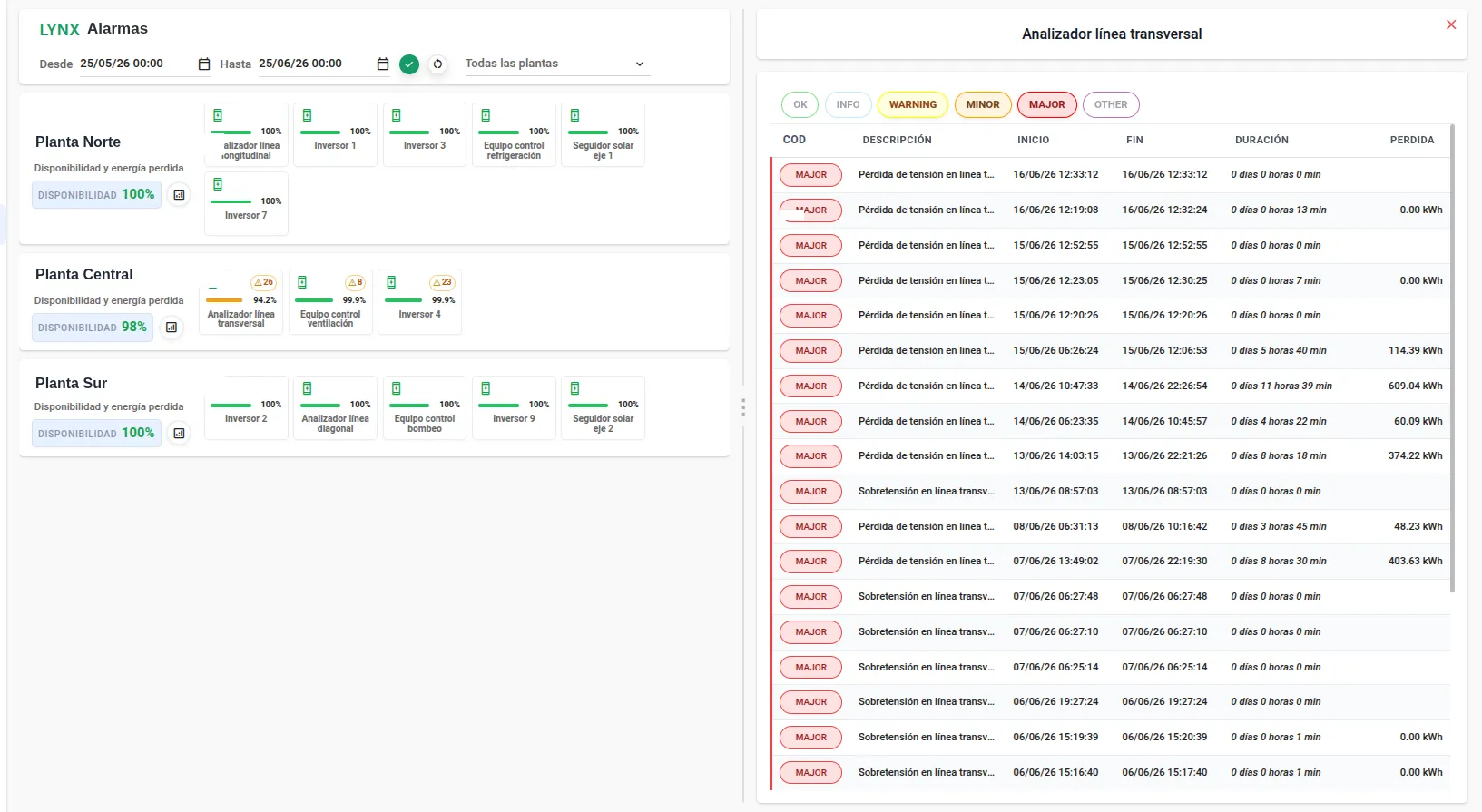
One card per site with its availability and all its assets. Each asset shows its number of alarm events and a 0–100 availability bar. Selecting an asset with alarms opens its list on the right with the estimated impact. In the photovoltaic example, that impact is lost energy.
- Card per siteName, availability percentage and the set of associated assets.
- Events per assetEach asset shows its number of alarm-type events and a 0–100 availability bar.
- Detail per assetSelecting an asset with alarms opens its list on the right.
- Estimated impactIn photovoltaic, lost energy computed from the inverter's nominal power and the radiation during the alarm state.
WHAT TO LOOK AT FIRST Six levels, and only two carry real impact
Events are classified following the hardware manufacturers' criteria. By default WARNING, MINOR and MAJOR are shown (all filterable).
- OK
- INFO
- WARNING
- MINOR
- MAJOR
- OTHER
ROW BY ROW Every alarm carries what was lost
The selected asset's list details each alarm with its criticality, timeline and estimated impact (lost energy in the photovoltaic example).
- COD
- Event code and criticality (OK · INFO · WARNING · MINOR · MAJOR · OTHER).
- Description
- Manufacturer message: voltage loss, overvoltage, etc.
- Start
- Timestamp when the alarm state begins.
- End
- Timestamp when the state ends.
- Duration
- Total time in alarm state (days · hours · min).
- Loss
- Estimated impact of the interval (lost energy in kWh in the photovoltaic case).
WITHOUT LOGGING IN It reaches you when it trips, and when it clears
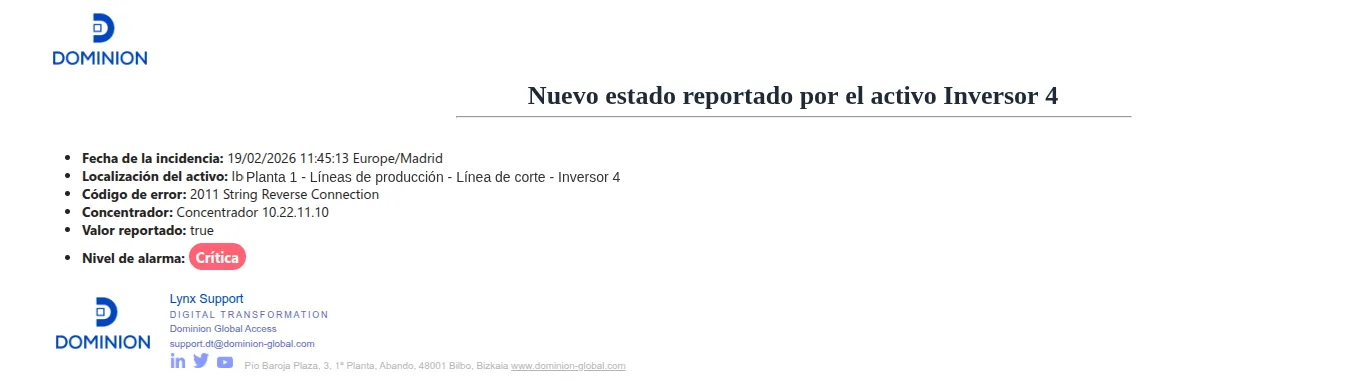
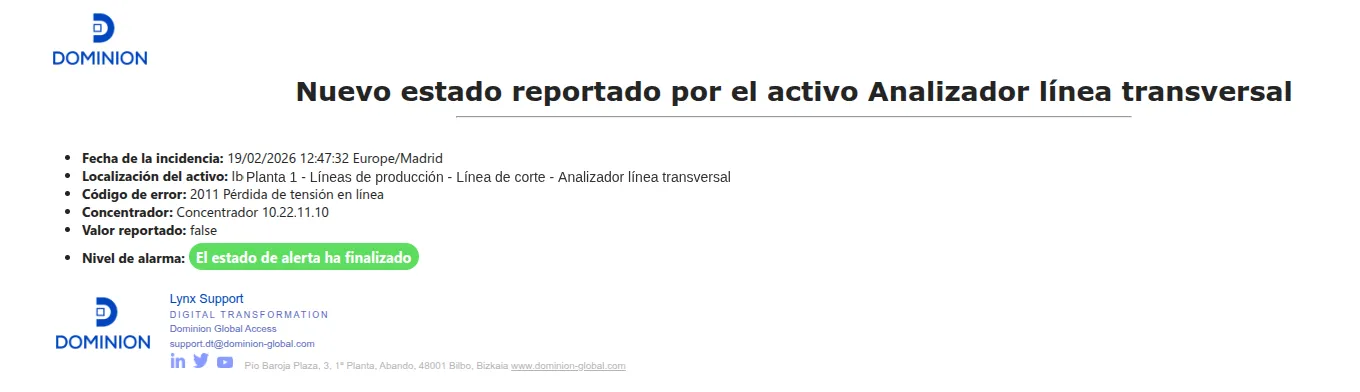
Every new status reported by an asset is emailed: location, error code, concentrator, reported value and alarm level, both on trigger and on clearance.

From the alarm to the diagnosis
We prepare a demo with the alarms from one of your sites and look at the margin that shows up once the cause is known.
Or write to us directly at support.dt@dominion-global.com